
Anúncios
Editing photos and videos on a phone has become second nature for creators, small business owners, and anyone who wants their content to stand out. 📱✨
Finding the right app for photo and video editing can change how you communicate online, whether you’re building a brand, documenting memories, or just experimenting with creative tools.
This guide breaks down what actually matters when choosing an editing app, the features worth paying attention to, and practical tips to get professional-looking results without a steep learning curve.
Why Mobile Editing Tools Have Replaced Desktop Software for Most Users#
Five years ago, serious editing meant sitting at a computer with Premiere Pro or Photoshop open for hours. That’s no longer the norm for most content creators.


Mobile processors now handle 4K video rendering, layered photo edits, and real-time filters without lag. A mid-range smartphone from 2023 onward can export a 60-second video in under two minutes using apps like InShot or CapCut.
Here’s what changed the game:
- Touch-based timelines make trimming and splitting clips faster than mouse-based editing
- Built-in music libraries remove the need for separate licensing searches
- Instant social export presets format content correctly for Instagram Reels, TikTok, and YouTube Shorts automatically
- Cloud sync lets you start editing on a phone and finish on a tablet
Content creators posting three or more times per week simply can’t justify the time cost of desktop workflows anymore. Speed matters as much as quality.
What Changed in Processing Power Since 2020#
Chipsets like the Snapdragon 8 Gen 2 and Apple’s A16 Bionic introduced dedicated neural engines that handle tasks like background removal and auto color correction in real time. This is why features that used to require manual masking now happen with a single tap.
Core Features That Separate Good Apps From Mediocre Ones#
Not every editing app delivers the same value. Some focus purely on filters, while others offer frame-by-frame precision. Knowing what to look for saves time and frustration.
| Feature | Why It Matters | Common in Free Tier? |
|---|---|---|
| Multi-layer editing | Allows text, stickers, and video clips to overlap without flattening | Sometimes |
| Keyframe animation | Enables smooth zoom, pan, and rotation effects over time | Rarely |
| Chroma key (green screen) | Replaces backgrounds without a physical studio setup | Often limited |
| Speed ramping | Creates dynamic slow-motion to fast-motion transitions | Yes, in most apps |
| Audio ducking | Automatically lowers music volume during voiceovers | Sometimes |
If an app lacks multi-layer support, you’ll hit a creative ceiling fast — especially when trying to combine text overlays with background music and transition effects simultaneously.
Photo Editing Tools Worth Prioritizing#
For photo-focused work, look beyond basic filters. The tools that actually improve image quality include:
- Selective color adjustment — change the hue of one object without affecting the whole image
- Curves and levels control — precise exposure correction beyond simple brightness sliders
- Frequency separation — smooths skin texture while preserving detail, used heavily in portrait retouching
- Batch editing — applies the same preset to dozens of photos in one action, essential for product photography
Apps like Snapseed and Lightroom Mobile still lead in this category because they replicate desktop-level color science on a touchscreen.
Video Editing Workflow: A Practical Step-by-Step Approach#
Many beginners open an editing app and get overwhelmed by the timeline. A structured workflow fixes that.
- Import and trim raw footage first — remove unusable clips before adding any effects
- Arrange the sequence — place clips in story order on the timeline
- Add transitions sparingly — two or three transition styles per video look more professional than ten different ones
- Layer in audio — background music first, then voiceover, then sound effects
- Apply color grading last — consistency across all clips matters more than individual clip brightness
- Export at the correct resolution — 1080×1920 for vertical social content, 1920×1080 for horizontal YouTube uploads
Skipping the trim-first step is the most common mistake. Editing with effects and clips in the wrong order means redoing work later, which wastes far more time than a careful first pass.
Common Export Mistakes That Hurt Video Quality#
Exporting at the wrong bitrate is the silent killer of video quality. A 1080p export under 8 Mbps bitrate will look compressed and blurry once uploaded to Instagram, which compresses further.
Export at a higher bitrate than you think you need — platforms will compress regardless, so starting higher preserves more detail after their algorithm processes it.
Choosing Between Free and Premium Versions#
Most editing apps use a freemium model. The free tier usually covers basic trimming, filters, and music, but premium unlocks watermark removal, 4K export, and advanced effects.
Here’s a realistic breakdown of what’s typically gated behind a paywall:
- 🚫 No watermark on exported content
- 🎬 4K resolution export instead of capped 1080p
- 🎵 Access to full licensed music libraries instead of a limited free selection
- 🖼️ Advanced overlay and blending modes
- ⚡ Faster export processing without ads interrupting the workflow
For casual users posting occasionally, the free tier is often enough. Creators monetizing content professionally usually recoup the subscription cost within the first month through improved production value.
Subscription Pricing Patterns to Watch For#
Many apps offer a weekly subscription that looks cheap but adds up to more than an annual plan over time. A $4.99 weekly fee totals roughly $260 per year, while annual plans for similar apps often cost between $35 and $60. Always check the yearly option before committing to weekly billing.
Editing for Different Platforms: Format and Style Differences#
Content that performs well on TikTok doesn’t always translate to YouTube or Instagram without adjustments. Each platform rewards different pacing and formatting.
| Platform | Ideal Aspect Ratio | Pacing Style | Max Recommended Length |
|---|---|---|---|
| TikTok | 9:16 | Fast cuts, hook in first 2 seconds | 60 seconds |
| Instagram Reels | 9:16 | Moderate pacing, trending audio sync | 90 seconds |
| YouTube Shorts | 9:16 | Slightly slower, informative tone | 60 seconds |
| YouTube (long-form) | 16:9 | Structured intro, body, and conclusion | No strict limit |
Reformatting the same footage for each platform using built-in aspect ratio presets saves significant editing time compared to manually cropping every clip.
Adapting One Video for Multiple Platforms#
Record footage with extra space around your subject whenever possible. This gives you room to crop into 9:16 for TikTok and keep 16:9 for YouTube from the same original clip, instead of reshooting for each format.
Apps like InShot include a one-tap ratio switcher that preserves your edits while adjusting the frame, which cuts reformatting time from twenty minutes down to under five.
Audio and Music Integration: The Overlooked Detail#
Viewers forgive mediocre visuals more easily than poor audio. A slightly shaky clip with clean sound outperforms a perfectly stable shot with muffled audio in most engagement metrics.
Key audio adjustments that make a measurable difference:
- Noise reduction — removes background hum from wind or room tone
- Volume normalization — keeps consistent loudness across multiple clips from different recording sessions
- Beat syncing — aligns cuts to the rhythm of background music, which increases watch time on platforms like TikTok
- Voiceover ducking — automatically reduces music volume when speech is detected
Testing shows that beat-synced edits generate noticeably higher completion rates compared to randomly timed cuts, since the rhythm creates a subconscious expectation that keeps viewers watching.

Video Editor & Maker - InShot
Installs10K+
Size264.7MB
PlatformAndroid/iOS
PriceFree
Information about size, installs, and rating may change as the app is updated in the official stores.
Practical Tips to Improve Editing Speed Without Sacrificing Quality#
Efficiency matters just as much as creativity when you’re producing content regularly. These habits reduce editing time significantly.
- Create and save custom presets for color grading so you’re not adjusting sliders from scratch every time
- Organize footage into folders by project before opening the editing app
- Use keyboard shortcuts on tablet versions of apps that support external keyboards
- Pre-select music before editing visuals, since pacing decisions depend on the audio track
- Batch export multiple versions (different aspect ratios) in one session instead of reopening the project later
Creators who build a repeatable template for intros, transitions, and outros cut their average editing time by roughly 40%, based on workflow studies from content agencies managing high-volume social accounts.
Building a Reusable Project Template#
Set up a blank project with your logo intro, standard font choices, and preferred transition style saved as a template. Future projects start from this base instead of a blank timeline, which keeps branding consistent across every piece of content you publish.
This single habit, more than any individual app feature, is what separates channels with a recognizable visual identity from ones that look inconsistent from post to post.
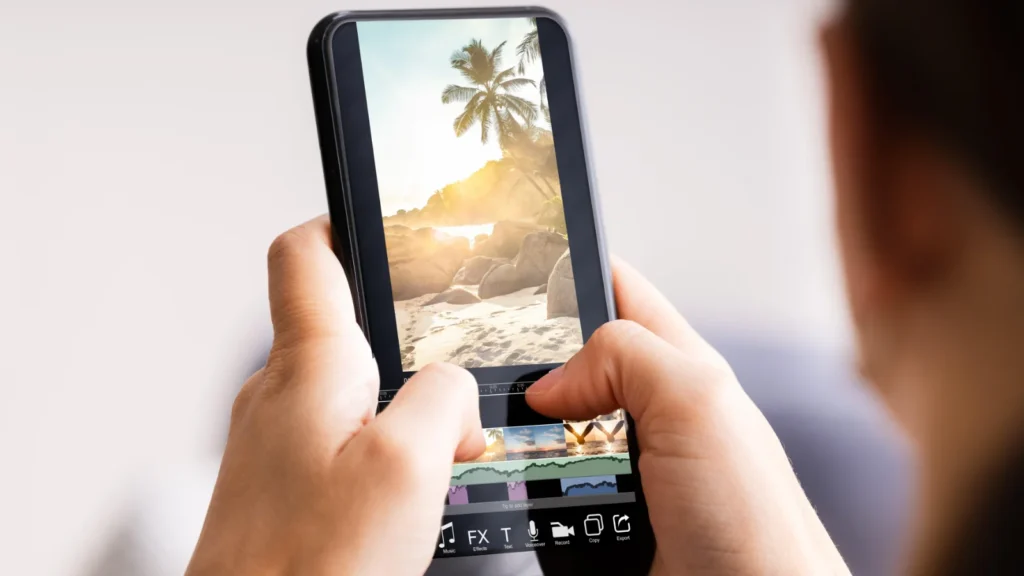
Picking the Right App Based on Your Actual Needs#
There’s no single best app for everyone. The right choice depends on what you’re creating and how often you publish.
- If you post daily short-form video content, prioritize apps with fast export and built-in trending audio
- If you focus on photo retouching for a portfolio, prioritize color precision and layer-based tools
- If you manage a small business account, prioritize batch editing and consistent branding templates
- If you’re just starting out, prioritize simplicity over advanced features you won’t use yet
Testing two or three apps with the same piece of footage before committing to a subscription reveals which interface actually fits your workflow, rather than relying on reviews alone. The time invested in that comparison pays off every time you sit down to edit afterward.
Keep reading
You might also like

Best GPS and Maps Apps for Navigation and Travel
Finding your way through unfamiliar streets used to mean paper maps and guesswork. Today, GPS and mapping apps turn every smartphone into…

Best GPS and Maps Apps for Navigation and Travel
Finding your way around a new city or avoiding a messy traffic jam shouldn't be guesswork — a good GPS and maps…