
Anúncios
Choosing the right photo and video editing apps can transform ordinary content into something scroll-stopping, whether you’re a casual creator or an aspiring influencer.
Mobile editing has come a long way from basic crop-and-filter tools. Today’s apps pack professional-grade features once reserved for desktop software.
This guide breaks down what actually matters when picking an editing app, backed by practical comparisons and real workflow tips you can use today.
Why Mobile Editing Apps Replaced Desktop Software for Most Creators#
A decade ago, serious photo and video editing meant sitting at a computer with Photoshop or Premiere open. That’s changed dramatically.


According to data from app analytics firms, mobile editing app downloads grew by over 35% between 2021 and 2023, driven largely by short-form video platforms like TikTok and Instagram Reels.
The reasons are practical:
- 📱 Speed — export a reel in under five minutes without touching a laptop
- 🎯 Templates — pre-built transitions and effects cut editing time by half
- ☁️ Cloud sync — start editing on your phone, finish on a tablet
- 💰 Cost — many top apps are free or under $10/month versus $20+ for desktop suites
That said, mobile apps aren’t replacing desktop tools entirely for high-end production work — they’re complementing them for everyday content creation.
Core Features That Separate Good Apps From Great Ones#
Not every editing app deserves space on your phone. Here’s what actually makes a difference in daily use.
Video Editing Essentials#
Look for apps offering multi-track timelines, keyframe animation, and speed ramping. These features let you layer audio, text, and clips independently instead of fighting a single linear timeline.
Color grading tools matter too. Apps with adjustable LUTs (Look-Up Tables) give footage a cinematic feel without needing manual color correction knowledge.
Photo Editing Must-Haves#
For photos, prioritize apps with:
- Non-destructive editing (original file stays untouched)
- RAW file support for DSLR and mirrorless camera imports
- Selective masking tools for targeted adjustments
- AI-powered background removal
Apps lacking RAW support will frustrate anyone shooting with a dedicated camera rather than just a phone.
Comparing the Most Popular Editing Apps in 2024#
Here’s a practical breakdown of category leaders, based on feature sets and typical use cases:
| App | Best For | Price Model | Standout Feature |
|---|---|---|---|
| CapCut | Short-form video, social reels | Free with optional Pro | Auto-captions with 90%+ accuracy |
| Lightroom Mobile | Photo color grading | Subscription ($9.99/mo bundle) | Adobe cloud sync across devices |
| VSCO | Aesthetic photo filters | Freemium | Film-inspired presets |
| InShot | Quick video trims and collages | Free with watermark removal paid | Simple drag-and-drop interface |
| Snapseed | Detailed photo retouching | Free | Precise healing brush tool |
Each tool solves a different problem. There’s no single “best” app — the right choice depends on whether you’re prioritizing speed, precision, or aesthetic consistency.
Building an Efficient Editing Workflow on Your Phone#
Random tapping around an app wastes time. A structured workflow saves hours over a month of regular posting.
Step-by-Step Process for Video Content#
- Shoot in good lighting — natural light reduces the need for heavy color correction later
- Organize clips first — trim raw footage before adding effects
- Add audio early — syncing cuts to music beats is easier before adding text overlays
- Apply color grade last — consistency matters more once all clips are arranged
- Export in the right resolution — 1080×1920 for vertical platforms, 1920×1080 for horizontal
Skipping step order — like adding filters before trimming — often means redoing work twice.
Photo Editing Shortcuts Worth Learning#
Batch editing is underused. Most apps, including Lightroom Mobile, let you apply one edit preset across dozens of photos simultaneously. This is essential for anyone managing a consistent feed aesthetic.
Another overlooked trick: duplicate layers before applying heavy edits. If an adjustment looks wrong, you can blend it back with the original at reduced opacity instead of starting over.
AI Features Changing How We Edit Content#
Artificial intelligence isn’t just a buzzword in editing apps anymore — it’s doing real work.
Modern apps now offer:
- 🤖 Auto-captioning with near-perfect speech recognition
- 🎨 Style transfer that applies an entire visual aesthetic in one tap
- ✂️ Smart object removal that fills gaps using surrounding pixel data
- 🔊 Background noise reduction for cleaner audio without external mics
These tools used to require manual masking or third-party plugins. Now they’re built directly into free mobile apps, cutting editing time significantly for creators without technical training.

CapCut - Editor de vídeo
Size828.5MB
PlatformiOS
PriceFree
Information about size, installs, and rating may change as the app is updated in the official stores.
Storage, Export Quality, and Common Mistakes to Avoid#
Many creators lose quality during export without realizing why. Here’s what typically goes wrong.
Bitrate and Compression Issues#
Exporting at a low bitrate makes videos look blurry after platforms like Instagram compress them further. Always export at the highest bitrate your app allows — generally 10-20 Mbps for 1080p content.
Photos saved repeatedly as JPEG lose quality each time due to lossy compression. Keep a master copy in PNG or the app’s native format before exporting final JPEGs.
Storage Management Tips#
Video projects eat storage fast. A single minute of 4K footage can take up 400MB or more. Consider these habits:
- Delete raw footage after final export, keeping only the project file
- Use cloud backup apps like Google Photos with original quality sync
- Clear app cache monthly — editing apps often hoard temporary render files
Running out of storage mid-edit is one of the most common reasons exports fail or crash unexpectedly.
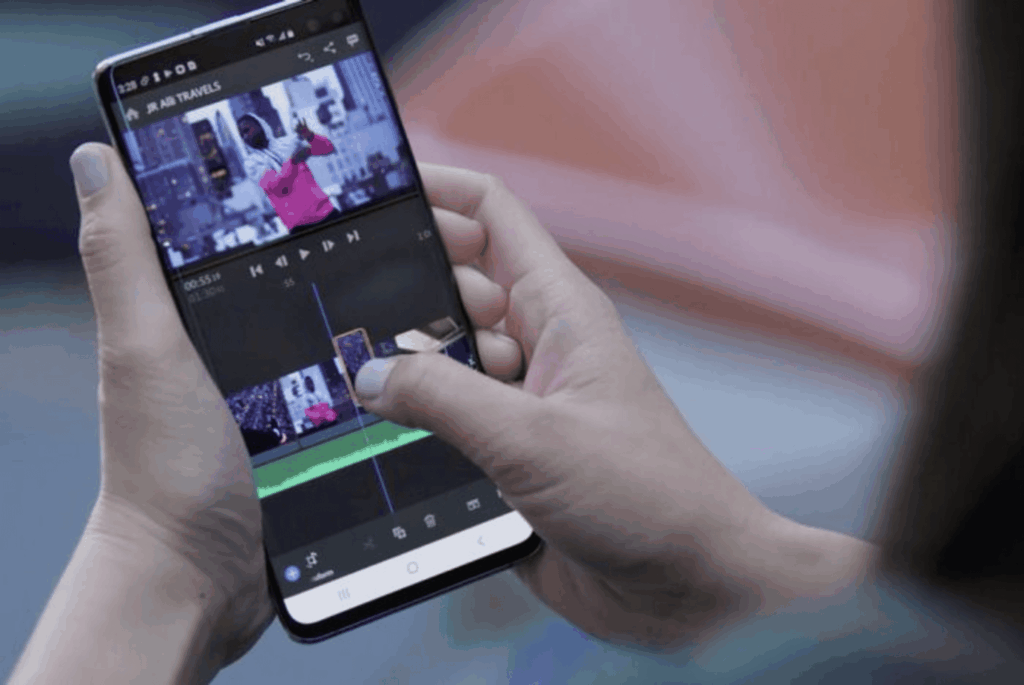
Picking the Right App for Your Content Style#
Your editing needs depend heavily on what you’re creating and how often you post.
Someone posting daily Instagram Stories needs speed and templates — CapCut or InShot fit better than a detail-heavy tool like Snapseed. A photographer building a portfolio, though, benefits more from Lightroom’s precision controls and RAW support.
Consider testing two or three apps for a week before committing. Most offer free tiers robust enough to judge whether the interface matches your workflow style.
The best editing app isn’t the one with the most features — it’s the one you’ll actually open every day without friction.
Keep reading
You might also like

Best GPS and Maps Apps for Navigation and Travel
Finding your way through unfamiliar streets used to mean paper maps and guesswork. Today, GPS and mapping apps turn every smartphone into…
Best GPS and Maps Apps for Navigation and Travel
Finding your way around a new city or avoiding a messy traffic jam shouldn't be guesswork — a good GPS and maps…